
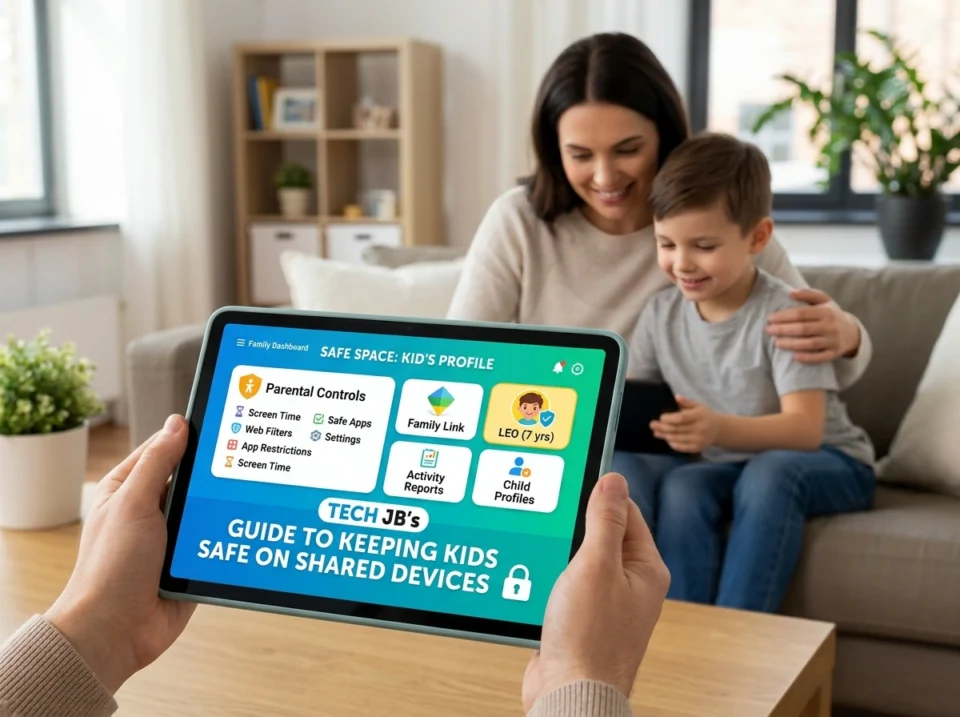
Family tablets, laptops, and smartphones make life easier. Everyone gets to watch shows, finish homework, play games, and stay connected. But when kids and adults use the same device, safety gets complicated fast. A single tap can expose a child to content they’re not ready for, or open the door to scams, strangers, and accidental purchases.
The good news? You don’t need to be a tech expert to protect your kids. With a few smart settings and some honest conversations, you can turn any shared device into a safer space. This guide walks you through the practical steps that actually work.
Why Shared Devices Need Extra Attention
Shared devices carry a unique set of risks. Browsing history blends together. Saved passwords stay logged in. App stores remember payment details. A child borrowing a parent’s phone might stumble onto an adult email, a banking app, or a website meant for grown-ups.
Children also tend to explore. They click links, download apps, and follow their curiosity. On a personal device with kid-friendly settings, that curiosity is mostly harmless. On a shared device set up for adults, it can lead somewhere risky. The goal is to build layers of protection so that no single mistake creates a big problem.
Set Up Separate User Profiles
The single most effective step you can take is creating individual user profiles. Most modern devices support this feature, and it changes everything.
When your child logs into their own profile, they see only their apps, files, and content. Your work documents, private messages, and financial apps stay hidden behind your account. This separation also lets you apply different rules to different users.
Here’s how to start:
- On Windows and Mac: Create a standard (non-admin) account for each child. This blocks them from installing software or changing system settings.
- On Android tablets: Use the “Users” or “Restricted Profile” feature to limit which apps appear.
- On iPads: While Apple doesn’t offer multiple full profiles, you can pair Screen Time controls with a dedicated Apple ID for your child.
Separate profiles give each family member their own safe zone, and they make monitoring far simpler.
Activate Parental Controls
Parental controls are your built-in safety net. Every major operating system includes them, and they’re free.
These tools let you filter mature content, block specific websites, and approve apps before they download. On Apple devices, look for Screen Time. On Android and Chromebooks, set up Google Family Link. Windows offers Microsoft Family Safety, and gaming consoles include their own parental settings too.
Take time to explore each setting. You can usually:
- Block or filter explicit web content
- Restrict downloads by age rating
- Limit who your child can message or call
- Receive activity reports by email
For families who want extra guidance setting up these tools, resources like teck jb offer helpful tips for managing devices and keeping them secure.
Manage Screen Time Wisely
Too much screen time affects sleep, focus, and mood. Setting clear limits protects your child’s wellbeing and helps build healthy habits.
Built-in tools make this easy. You can schedule “downtime” when only certain apps work, set daily limits for games and social media, and lock the device during bedtime hours. Many parents set a hard stop an hour before sleep so screens don’t interfere with rest.
Beyond the technical limits, talk with your kids about balance. Explain why breaks matter. Encourage outdoor play, reading, and family time. When children understand the reasons behind the rules, they’re more likely to follow them.
Monitor Browsing History and Activity
Keeping an eye on what your child does online isn’t about spying. It’s about staying informed so you can guide them.
Check browsing history regularly, especially on shared browsers. Most parental control apps generate weekly reports showing which sites were visited and how long apps were used. Review these together with older kids so they learn to make good choices.
Be open about monitoring. Let your children know you check in, and explain that it’s part of keeping them safe. This honesty builds trust and removes the temptation to hide things. As kids grow and prove responsible, you can loosen the reins.
Secure App Downloads and Purchases
Accidental purchases and risky downloads are common headaches on shared devices. A child tapping “buy” can rack up surprise charges, and a sketchy app can carry malware.
Protect against this by:
- Requiring a password or fingerprint for every download and purchase
- Turning off one-click buying in app stores
- Removing saved payment cards from devices kids use
- Disabling in-app purchases for games
Set the app store to ask for your approval before anything installs. This simple step stops most problems before they start.
Strengthen Passwords and Account Security
Shared devices often stay logged into important accounts. That’s convenient, but risky. Make sure your sensitive apps, email, banking, and shopping, require a password each time.
Use a password manager to keep accounts secure without forcing you to remember dozens of logins. Turn on two-factor authentication for any account that supports it. And teach older children to create strong passwords of their own. A good password is long, mixes letters and numbers, and avoids obvious choices like birthdays.
Teach Kids About Online Safety
Technology can only do so much. The most powerful protection is an informed child who knows how to handle tricky situations.
Have regular, age-appropriate conversations about online safety. Cover these key points:
- Never share personal details like your address, school, or phone number with strangers
- Be kind online and tell a parent about any bullying
- Don’t click suspicious links or download unknown files
- Question what you see, since not everything online is true
- Come to a parent when something feels wrong or scary
Make these talks ongoing rather than one big lecture. Ask open questions about what they enjoy and who they talk to. When children feel comfortable coming to you, they’ll share problems early, before they grow.
Keep Software Updated
Outdated software is an easy target for hackers. Updates fix security holes and add new safety features, so they matter more than people think.
Turn on automatic updates for the operating system and all apps. Check now and then that everything is current. This small habit closes gaps that could otherwise put your family’s data at risk.
Create Family Rules Everyone Follows
Clear rules make expectations easy to understand. Sit down as a family and agree on a few simple guidelines for shared devices. You might decide where devices can be used, how long sessions last, and which apps are off-limits.
Write the rules down and post them somewhere visible. When the whole family follows the same standards, kids see that the rules are fair and consistent. Lead by example, and your children will follow.
Final Thoughts
Keeping kids safe on shared devices comes down to a mix of smart settings and good communication. Separate profiles and parental controls build the technical foundation. Screen time limits and secure purchases reduce daily risks. And honest conversations give your children the judgment to stay safe even when you’re not watching.
Start with one or two steps today, then add more over time. Every layer you put in place makes your family’s devices safer and gives you peace of mind. With a little effort, you can let your kids enjoy all the benefits of technology while keeping the dangers at bay.
